A wedding slideshow for the reception.
The reception slideshow is a favorite: baby photos of each of you, then the two of you together. Guests always watch.
Humble Video keeps it elegant without any effort: soft transitions, a slow zoom toward your faces, and music that fades out right on time.

Free to try · Plus is $8.99, once
How to make it in Humble Video
- 1
Pick your photos
Tap New slideshow and choose photos (and video clips, with Plus) in the iPhone photo picker. Humble Video only sees the ones you pick.
- 2
Put them in order
Start with each of you growing up, then how you met, then your life together. Open with a title card with your names and the date.
- 3
Choose a song and export
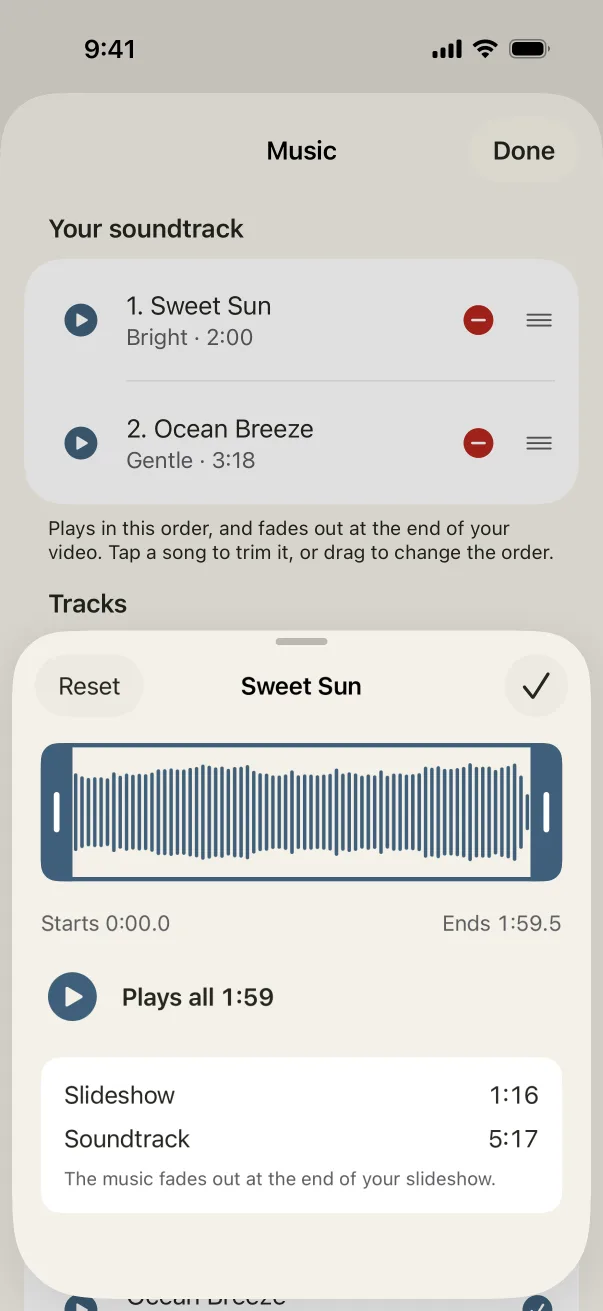
A song is already chosen; change it if you like. Tap Export, and the video is saved to your Photos, ready to share or play on a TV.
Settings that suit it
Suggestions, not rules. Every setting can be changed any time.
- Shape
- Landscape for the reception screen
- Each photo
- 5 seconds
- Transition
- Crossfade
- Music
- Ocean Breeze, or your song from Files
A few tips
- Alternate between you while growing up: a photo of each at five, at ten, at sixteen.
- Keep it to one or two songs. Four minutes is plenty during dinner.
- Afterward, make a second slideshow from the wedding photos themselves for your first anniversary.
Questions
Can we use our first dance song?
Yes. Add the song from Files and trim it to the part you want. For playing at your reception that is fine; if you post the video publicly, the song's usual rules apply.
Will the venue be able to play it?
It's a standard MP4. Ask the venue what they play from (a laptop, a USB stick, AirPlay) and bring it that way.
Is Humble Video free?
Free to try: up to 10 photos in a slideshow, every look and all the music, in 1080p with a small Humble Video mark. Humble Video Plus is $8.99, once, for video clips, unlimited photos and slideshows, 4K and no mark. No subscription. See pricing.
Are my photos uploaded?
No. The video is made on your iPhone or iPad. No account, no tracking, nothing uploaded. Privacy policy.

Make yours in a few minutes.
On iPhone and iPad. Free to try.